OzCAD Australian Vectorworks Distributor

Vectorworks Architect

Vectorworks Architect Overview

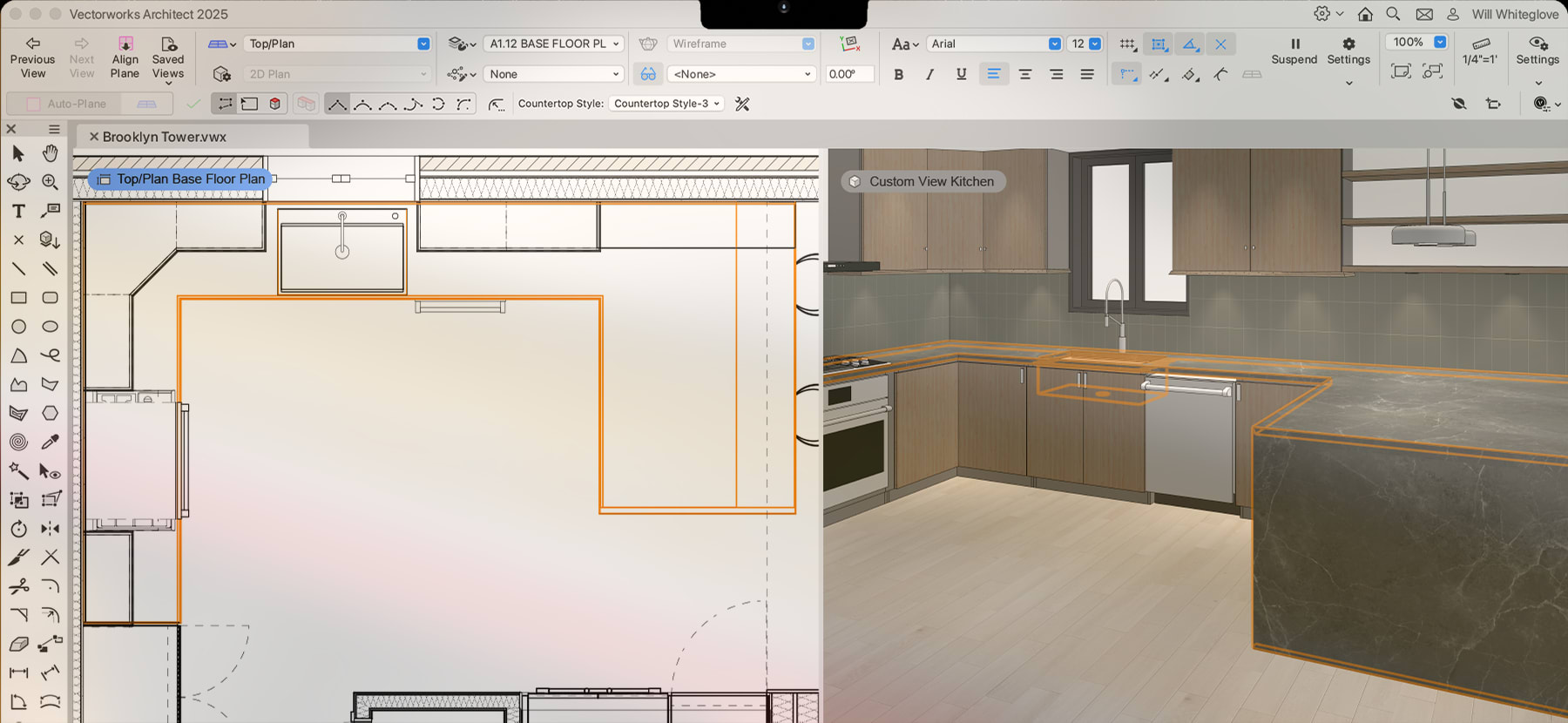
Vectorworks Architect is elegant architectural CAD software that offers BIM capabilities in a flexible, hybrid-design environment. With its superior 2D and 3D functionality, you’ll enjoy an ease-of-use not found in competing products. Vectorworks Architect’s approach to BIM lets you improve your existing design process instead of replacing it – making it easier for many firms to adopt a BIM workflow.

Benefits

Realize your most inspired visions with Vectorworks Architect. After all, you inspired its design. It's flexible, so you have the freedom to design the way you want. It's versatile, so you can create, model, and present easily and precisely with one application. It's intuitive, so it works the way you think. It's a smart investment that's affordable, customer-focused, and proven worldwide.

Flexible: Enjoy the freedom to design the way you want

With Vectorworks Architect you’re not limited to a prescribed workflow, so you have the freedom to work the way you want to work. Incorporate your existing approach to design to make the best use of the skills you already have in-house. Collaborate seamlessly with other people and with other software applications.

Versatile: Create, Model, and Present with one application

Move easily between tasks. From design concepts to construction documentation and every design phase in between, Vectorworks Architect marries precision 2D drafting and flexible 3D modeling with state-of-the-art technology. Create, model, and present easily and precisely with one application. With Vectorworks Architect, you can do it all.

Intuitive: Work the way you think

Do what you like to do best— design. You won't waste time getting up to speed because Vectorworks Architect's simple, customizable interface and what-you-see-is-what-you-get display make it easier to learn and use than standard CAD applications. No matter what you're switching from, Vectorworks Architect's interface will be familiar. Vectorworks' SmartCursor™ technology replaces manual drafting tools, so even inexperienced CAD users can make the switch easily.

Smart: Make a good investment in yourself

Affordable, customer-focused, and proven worldwide—Vectorworks is a smart investment in you.

New In 2010

Architectural Features

Improved Wall Networks Improved Wall Networks The Dimensional Constraint Manager allows associated relationships and constraints between walls. This means more robust and reliable wall networks and connections that work exactly the way you want. View Movie
Wall Sculpting Wall Sculpting Our new wall sculpting capabilities allow you to add wall features like projections and recesses to walls while maintaining the wall intelligence and behavior. Now you can model those older or unusual walls! View Illustration
Improved Drawing Coordination Improved Drawing Coordination Vectorworks Design Series users will enjoy the automatic coordination of sheet numbers and drawing numbers among sheet borders, drawing labels, and section markers. View Movie
New Corner Window New Corner Window You can easily place corner windows in 2D or 3D. View Illustration
New Stair Tool New Stair Tool Introducing a fantastic new stair object with improved performance and reliability in both 2D and 3D views! The new stair options let you tailor the settings to your specific needs, and then transfer the parameters from one stair to another with a single click. View Movie
Enhanced Wall Joining Enhanced Wall Joining Complex wall joins are now made routine. Specify the "core" wall component, and watch as the wall components match correctly to their counterparts in the joining wall. And wall caps now can display using component line attributes. View Movie
New Notes Manager Capabilities New Notes Manager Capabilities We've made drawing notation callouts and keynotes easier. You'll see:
  • new bubble and leader styles for the Callout tool, giving you more control, while adhering to office graphic standards;
  • keynote display counters can be numeric or alphabetical and are reflected in the keynote legend;
  • the ability to link a keynote to any legend in the file;
  • easy updating of keynote legends;
  • multiple columns for keynote legend text;
  • the ability to display and sort the keynotes notes by key tags; and
  • automated sorting of keynotes in the Notes Manager.
View Movie
Improved Wall Hole Editing Improved Wall Hole Editing The wall hole component we introduced to symbols in version 2009 was a great success. With version 2010, we've made editing even easier. When editing the 3D wall hole component, the symbol instance being edited is shown in black, with the surrounding context shown in gray. Component geometry is drawn in red. Now it's easy to create the editing geometry!
Prevent Wall Insertion Option Prevent Wall Insertion Option Now you can specify the wall insertion mode for symbols or plug-in objects at creation, for greater control over the behavior of your resources. View Illustration
Improved Wall Hole Textures Improved Wall Hole Textures We're giving you more control over wall opening textures. Now you can assign textures to the faces of the wall opening.
Simple Stair Simple Stair Design Series users who don't need a complex stair now have access to the simple stair object in their workspaces.
New Content New Content Vectorworks Architect 2010 ships with a vast array of new symbols, new manufacturer object libraries, improvements to object geometry, and standard naming conventions:
  • New skylights from Velux
  • New audio/video and home electronics library
  • New fireplace fronts, mantels, and surrounds
  • Updated Weather Shield door and window library
  • New water features

3D Environment

2D-3D Integration New Unified 2D/3D Environment Building upon the Parasolid modeling foundation we laid in 2009, Vectorworks 2010 has a new unified view that makes it an ideal 3D modeling environment. When you're working in unified view, it allows you to select and modify objects on any layer. View Movie
Improved 3D Snapping Improved 3D Snapping Now more than ever, Vectorworks users are investigating the potential of 3D. As a result, you'll notice improvements in the overall usability and reliability of 3D snapping. With the 3D cursor and new working plane graphics, you can reliably acquire your snaps, so it's easier to select, modify, and align your objects in 3D. View Movie
Planar Graphics New Planar Graphics 2D objects can occupy the screen plane as they do now, or they can become planar objects, which exist in 3D space and maintain their relationship to the 3D model. View Illustration

Associativity

New Digital Constraint Manager New Dimensional Constraint Manager (DCM) Make life easier with more reliable parametric constraints. The new and robust Dimensional Constraint Manager provides bi-directional associativity, so you can interactively make edits to either objects or their constraints and have the changes automatically reflected. View Movie
Interactive Dimension Editing Interactive Dimension Editing Great new feature alert: now you can directly edit object geometry by changing its dimension value! Just edit the dimension value and when you press Enter, both the dimension and the associated object automatically update. View Movie

Drafting Improvements

New Dash Style Capabilities New Dash Style Capabilities With easy access to the Dash Styles dialog box from the Attributes palette, you can use up to 128 dash styles, reorder your dash styles, and custom name dash styles.
New Purge Capabilities New Purge Capabilities We've upgraded the Purge command in Vectorworks 2010 to do the following:
  • purge specific empty symbol folders
  • purge objects outside of the page boundary
  • purge plug-in object symbols and group symbols
  • purge record formats that store plug-in object defaults
  • purge unused dash styles
  • undo and redo purges
  • select and confirm the items to the purged
Improved 2D Reshape Tool Improved 2D Reshape Tool Here's a new trick: when you use the 2D Reshape tool to make a marquee selection and hold the Shift key down, you can select object vertices even when they are over another object.View Movie
New Rectangle Modes New Rectangle, Arc, and Circle Modes Drawing precise rectangles just got easier with new rectangle by Center/Corner and Side/Opposite Corner modes. Drawing circles just got easier too. With new Circle by Point and Center and Circle by Tangent and Center modes, you'll create the most precise circles. Also, check out the new Arc by Circumference mode of the Arc tool. View Illustration
Connect/Combine Tool Support for Multiple Objects Connect/Combine Tool Support for Multiple Objects We introduced a new mode that lets you extend multiple objects to a single boundary object in just one click. Voilà !View Movie
Chamfer by Length Option Chamfer by Length Option Now you can precisely define the length of the chamfer line.View Movie
Shortcut Support for Modification Tools Shortcut Support for Modification Tools Now the Rotate, Mirror, Offset, and Move by Points tools don't require you to pre-select the object you wish to modify.

Drawing Efficiency

Easy Mapping of Associative Hatches Easy Mapping of Associative Hatches Now you'll have greater control over modifying an object's associative hatch fill—you can more easily identify the origin, and precisely set the hatch origin, rotation, and scale.View Movie
New Select Similar Tool New Select Similar Tool Super time-saver alert! The new Select Similar tool enables you to select the objects you need with just one click, regardless of class or layer. You can select all similar objects based on any combination of 27 criteria, define saved settings, and save, load, or delete your selection settings—easier done than said.View Movie
New Global World Coordinates New Global World Coordinates You can choose to display global world coordinates, in addition to screen coordinates, when in rotated plan view, making it simple to accurately align your designs with the global coordinate system. The global and screen coordinates also display in different colours throughout the application for quick identification. View Illustration
Improved Move by Points Tool Improved Move by Points Tool When moving objects by a specified offset distance from the reference point, you can now choose whether you'd prefer to click on the object you want to move first and then the reference point, or vice versa. It's up to you. View Illustration

Import and Export Improvements

Import Improvements Import improvements include:
  • Improved DXF/DWG reference import support: xRefs are now imported as referenced design layer viewports (Design Series products) or layer links (Fundamentals).
  • DXF/DWG import saved settings: We've added a saved settings capability so you can recall saved sets of import options.
  • Import support for AutoCAD® scaled blocks: AutoCAD scaled blocks are now imported as Vectorworks symbols rather than groups.
  • Support for 128 dash styles: Vectorworks 2010 can hold up to 128 dash styles, so all dash styles will import, and your existing Vectorworks dash styles will not be overwritten.
  • Import 2D or 3D view of ADT objects: When you import files containing ADT objects, you can select whether you want the 2D or 3D view of the imported architectural objects.
  • AutoCAD table import support: Formatted tables are imported as lines and text and maintain their proper attributes—line style, colour, line thickness, and size.
  • New custom dimension standards: When DWG dimensions are imported, custom dimension standards corresponding to the AutoCAD file dimension styles are automatically created and applied.
  • SketchUp 7 import support: SketchUp 7 files can be imported in Vectorworks 2010
View Illustration
Export Improvements Export improvements include:
  • DXF/DWG batch export of saved views: Easily batch export any number of, or all saved views to separate DXF or DWG files.
  • DXF/DWG anonymous block export support: A new export option allows groups to be exported as anonymous blocks, and re-imported into Vectorworks as groups.
  • DXF/DWG export of sheet layers as 2D graphics: When sheet layers are exported, a new option allows viewports, and saved views with 2D and 3D Vectorworks graphics, to be exported as 2D "flat" graphics in AutoCAD model space.
View Illustration

New Dimension Options

Simultaneous DImension Editing Simultaneous Dimension Editing You can simultaneously edit single and chain dimensions; the Object Info palette now displays all of the additional parameters available for chain dimensions. You are a model of efficiency. View Illustration
New Dimension Segment Widget New Segment Position Control for Linear Dimensions We've added a widget to the Object Info palette and Properties dialog box for linear dimensions so you can specify which segment of the dimension (either endpoint or the center point) remains fixed when the dimension is resized. View Illustration
New Dimension Standard Options New Dimension Standard Options You can now quickly select the default dimension standard for your document or specify a new custom dimension standard from a new drop-down menu on the Tool bar. You can also access the Custom Dimension dialog box from the Object Info palette. View Illustration
Dimension Text Drag Support Dimension Text Drag Support Previously, you could only drag dimension text parallel to the dimension line. Now, the text for angular dimensions can be moved along the dimension curve and text for all other dimensions can be dragged in any direction, without affecting the dimension line location. So go ahead and drag dimension text in linear, as well as chain dimensions, wherever you desire.
Dimension Collision Control Chain Dimension Text Collision Control With text collision control, you can prevent chain dimension text from overlapping and becoming unreadable—ah, that's better. View Illustration
New Arc Length Dimension Tool New Arc Length Dimension Tool Now you can dimension any portion of an arc along its circumference.
Fractional Dimension Display Fractional Dimension Display Check out the new control in the Units dialog box. It gives you the option of displaying fractional dimension values in one of three smaller, classical fraction styles for all dimension types. View Illustration

New Help System

Adobe Air Online Help Adobe AIR for Online Help Our totally redesigned help system now uses Adobe AIR; this eliminates browser issues and includes nifty Web 2.0 features. You'll enjoy superior search capability, adding web and RSS feed links, and including custom notes to the help topics that will benefit every Vectorworks user in your office. View Movie

Enhanced Viewport and Referencing Capabilities

New Viewport Visibility Options New Viewport Visibility Options Now you'll enjoy even greater control over the look and feel of the viewports in your design. This preference allows you to apply your non-referenced design layer viewport visibilities to your sheet layer viewports. View Illustration
Improved File Referencing Capabilities Improved File Referencing Capabilities A more intuitive solution: when the program can't find referenced resources during an update, it will prompt you to break the reference, replace the resource with another available one, or delete the resource entirely. View Illustration
In-Place Reference Editing In-Place Reference Editing Here's a big time-saver: now you can modify referenced resources in place and in context with the right-click edit option, and even save the changes directly to the referenced file. Use this option for referenced gradients, hatch definitions, record definitions, render backgrounds, symbol definitions, textures, and, for Design Series users, sketch styles and wall styles. This feature will also allow you to modify referenced symbols in context. View Movie
Improved Viewport Crop Editing Improved Viewport Crop Editing When creating or editing viewport crops, the cropped area that was previously invisible is now visible in either wireframe or light grey. This allows you to snap to objects outside the crop while reshaping or moving the crop object. View Movie
Improved Elevation Benchmark Improved Elevation Benchmark We've added another parameter to the US-style elevation benchmark so you can extend the crosshair marks a custom distance beyond the marker circle.
New Find Resource Capability New Find Resource Capability Try the handy new "Find Resource" menu item in the Resource Browser to quickly locate resources within the current document.
Resource Browser View Enhancement Resource Browser View Enhancement It's a cinch to distinguish between similar resource names, since the Resource Browser now supports up to five lines of text for thumbnail views.View Illustration
Multi-Processor Support Multi-Processor Support All of the Parasolid-based functionality in Vectorworks 2010 now takes advantage of multiprocessing on the Macintosh.

Features

Create dynamic 2D and 3D designs, glide through your projects with a tightly streamlined interface, and access extensive features and resource libraries. Vectorworks Architect offers the features you want in a comprehensive, intuitive software that will multi-task just like you do.

A vast suite of 2D precision drafting tools provide you intelligent ways to design.

  • Parametric Constraints
  • Free Hand
  • Smart Cursor
  • Mirror
  • Rectangle
  • Tangents
  • Flyover
  • Split
  • Rounded Rectangle
  • Lines
  • Spiral
  • Attribute Mapping
  • Rotated Rectangle
  • Double Line
  • Eye Dropper
  • Trim
  • Circle
  • Arc
  • Attribute Mapping
  • Fillet
  • Circle by Points
  • Polyline
  • 2D Reshape
  • Chamfer
  • Oval
  • Polygon
  • Rotate
  • Offset
  • Clip
  • Move by Point
  • Chamfer tool
  • Double Polygon
  • Connect/Combine
  • Visibility
  • Select Similar
  • Create Similar Object

Building Information Modeling functionality is available in flexible 2D/3D workflows.

  • Viewports
  • Two-Way Database Worksheets
  • Planar Graphics
  • Unified View
  • Design Layer Reference Viewports
  • Linked Markers
  • HVAC, Plumbing, & Electrical Tools

Intelligent building shell tools enable an easy transition into a BIM workflow.

  • 2D/3D Wall and Roof Framer
  • Adjacency Matrix
  • Straight and Curved Walls
  • Window Walls
  • Customizable Window Tool
  • Customizable Door Tool
  • Wall Projections
  • Wall Recesses
  • GSA-Compatible Space Planning Object
  • Roof Faces and Model Roofs

Hybrid 2D/3D architectural objects allow you to design with valuable information already attached.

  • Columns and Campaniles
  • Custom Stairs
  • ADA Ramps
  • Custom Cabinets
  • Desks
  • Counters
  • Shelving
  • Tables & Chairs

A suite of powerful free-form modeling tools make it easy to design custom objects and shapes.

  • Boolean Operations
  • Nurbs Curves
  • Loft Surface
  • Extrusions
  • Extractions
  • Potrusions
  • Shells
  • Solids

Create stunning presentations with options other programs just don’t provide.

  • Gradients
  • Image fills
  • Hatches
  • Hand Sketch Styling
  • Unlimited Color Choices including palettes from Pantone®, Benjamin Moore®, Sherwin-Williams®, Resene®, Pittsburgh Paints®, and more.

Sharing your drawings is very simple with a broad array of import/export options.

  • DXF/DWG
  • PDF
  • .skp (Sketchup)
  • .kml (Google Earth)
  • .3DS
  • JPG, TIF, PSD, EPSF and more
  • IFC 2X3 Model Exchange
  • .stl
  • .IGES
  • .SAT
  • DOE-2
  • Parasolid X_T

Annotate and detail your drawings using the detailing suite in VectorWorks Architect. Options include:

  • Constrained Dimensions
  • Radial Dimensions
  • Chain Dimensions
  • Insulation
  • Redline and Revision Control
  • Notes Manager
  • Dimensional Constraints Manager
  • Library of details from www.CADdetails.com

Extensive symbol libraries ship with Architect so you don’t have to draw your instruments from scratch.

  • Marvin Windows and Doors
  • Storefront Windows and Walls
  • Knoll Furniture
  • Wolf Appliances
  • Entourage Vehicles
  • Entourage Figures
  • Seats
  • Millwork Cabinets
  • Handrails
  • Metal Detail
  • Furnishings and Scenic Elements
  • Elevators and Escalators
  • Fixtures
  • Fire Suppression
  • Fireplaces
  • Kohler Baths, Faucets, Sinks, Showers, Whirlpools, Bidets
  • Weather Shield Doors and Windows

Visualizing designs in is a breeze using a series of commands and rendering options available with the add on, RenderWorks.

  • Atmospheric effects
  • High Dynamic Range Images
  • Solar Animations
  • Volumetric lighting
  • Render physical light with .ies light distribution files
  • VBvisual Plants
  • Create accurate renderings with Radiosity or Final Gather Rendering

Australian Features

OzCAD produces a special version of Vectorworks Architect called Architect Australia, which is localised for Australian practice. It contains Australian libraries for walls, doors, windows, finishes, standards, applied finishes, sanitary fixtures, details, fireplaces, handrails and more. We have also added high quality 2D and 3D entourage libraries for people, vehicles, trees, furniture, etc., plus additional hatches, colour palettes, image fills and gradients. For more information, read the detailed descriptions below.

AnimationWorks

AnimationWorks allows you to create complex camera or object animations entirely within Vectorworks, then save them as QuickTime movies which can be viewed by anyone who has QuickTime installed. Read more and see sample movies.

Australian Colour Libraries

Standard libraries include Dulux®, Taubmans, Porters, Murabond, Colorbond®, Laminex®, Concrete Colour Systems and Cabots®, AS 1100.301 Material Colours.

Coordinate Marker Tool

Allows a drawing to be setout with coordinates that refer to a user defined origin or datum. If datum changes, objects can be updated to display the new settings. Options include whether IDs are displayed as in the example below, and whether X/Y or X/Y/Z values are shown. Can optionally display as Eastings/Northings.

Coordinate Marker Tool

Custom Dashed Line Tool

Useful for boundary lines, piping runs or electrical wiring, this tool is designed to draw straight sided polygons with edges comprising of dashed lines with a cross line or piece of text in the dash space. Once drawn, the polygon can be reshaped with the 2D Reshape tool.

Detailer Tool

Offers a speedy way to work up details that require repetitive elements to be drawn at regular intervals. By default it can draw dressed, undressed or finished timber sections in square or rectangular profiles, at nominated centres and at a nominated rotation. This allows studs, battens, joists, etc., to be quickly worked into details, whilst maintaining editability. Because the tools also supports symbols, you can add any repetitive element to the mix, such as roof tiles, timber cladding or floor boards, C or Z purlins, etc.

Equal Dimension Tool

Replaces the numeric dimension value on a picked dimension with the text ‘EQ’.

Handrails Tool

This tool allows a much greater variety of handrail objects to be drawn as a single piece or as multiple mitred lengths at any angle. It includes a library of predefined types that include glass, wire, timber and aluminium.

Heliodon Tool

For doing shadow diagrams and sun studies. The tool makes it much faster to set the sun position, can store an unlimited number of locations and also has the ability to view the model from the sun. You can also step though the times of the day in any view and watch how a shading device or other aspect of your building performs. Solar calculations can be done using solar time as well as clock time, removing ambiguity from shadow diagrams. As well, you can produce on-screen or QuickTime® solar animations viewed from the sun, providing a much faster way to assess solar access or to evaluate shading devices.

Heliodon Tool

Precast Wall Tool

Creates a 2D only linear object that represents a plan section through a precast concrete wall panel and is designed for producing 2D wall details.

Quick Building Tool

Produces simple block models that can be used for shadow diagrams, floor space calculations or any time you need one or more simple shaped buildings quickly. Buildings can have flat, hip or gabled roofs.

3D Tape Measure Tool

Quickly determine distances between points or objects in a 3D model using this new tool. Like its 2D counterpart, it provides a running total length as well as the length of the last segment drawn.

Local Content and Extra Libraries

  • Accessible doors library (for compliance with AS 1428.1)
  • Additional hatch libraries
  • Additional brick image fills
  • Additional colour palette libraries
  • Additional gradient fills
  • Australian applied finishes notes library
  • Australian handrails library and tool
  • Australian finishes notes library
  • Australian fire and acoustic rated steel framed wall systems notes library (Gyprock) in searchable format
  • Australian standard doors library
  • Australian Standards lists in searchable format
  • Complete Caroma library in plan, front and side views with records
  • Expanded Australian walls library with over 80 different types separated into different construction types (residential, commercial, new, existing, etc.).
  • Extensive and new 2D and 3D libraries for people, trees, cars, furniture, etc.
  • Forbos Marmoleum and Artoleum floor finishes as 2D image fills and 3D textures.
  • Jetmaster library
  • LiteSteel® Beam library
  • New 3D tree and people image prop objects for rendering
  • Stegbar aluminium and timber door and window library
  • Typical Australian details (Monier, Wunderlich, Gyprock, etc.)

Create Floors From Walls

Floor creation just got faster. This command quickly creates floors from selected walls, on the layer nominated. If the chosen layer is the same as the walls, the floors are conveniently sent behind the walls so they appear correctly in 2D.

Create Floors From Walls

Create Ceilings From Walls

Ceiling creation just got faster too. This command quickly creates ceilings from selected walls, on the layer nominated. Ceilings are created using extrudes so they are transparent in a Top/Plan view.

Create Ceilings From Walls

Edit Class Names Utility

Quickly search for and edit multiple class names in one hit with this useful utility.

Edit Class Names interface

Title Block Tool & Issue Command

The VAA Title Block tool and VAA Revise Issue Print commands provide a complete and flexible system for adding title blocks to drawings, entering issue or revision notes, batch printing and creating or updating a comprehensive transmittal. These tools are designed to speed-up drawing management whilst maintaining more accurate and detailed revision and issue history for the full duration of a project.

In Vectorworks 2008, there are new options which include north points, drawing stamps and custom names for title block symbols.

WinDoor Tool

Creates simple or complex windows and doors which are fully editable parametric objects. It allows design and documentation to happen more quickly and provides increased control over component sizes, greater flexibility with door and window designs, better line weight and class control, and the ability to do corner and bay windows with a few clicks. Supports a much greater range of door and window styles for both residential and commercial construction, including parallel sliding door systems, louvred windows, sashless glass windows, pivot doors, glass doors, glass block windows, along with all other conventional door and window types.

WinDoor also includes a custom library of standard Australian doors and windows that can be added to or edited by the user, then used to replace or modify an existing object. With the latter option, it is possible to copy one, some or all attributes from a library item, then apply these to one, some or all WinDoor objects in the drawing. Other new options also include pivot, hopper and round windows, as well as overhead doors.

All WinDoor objects can report both glazing and ventilation areas and have additional data entered such as glass and frame type, screening, egress, compliance and so on.

WinDoor Tool